CV Templates for Google Docs That Export Cleanly
I exported every Google Docs CV template to PDF and ran each through a parser. Here's the extracted text, which templates survive, and how to fix the rest.


On this page
Google's template gallery ships a handful of resume designs, and most of them look better on screen than they read after export. The layout survives the trip to PDF. The text underneath often doesn't, and the text is the only part an applicant tracking system (ATS) ever sees.
So I ran the test that template roundups skip. I opened each of Google's gallery resume templates, filled it with a sample work history, downloaded the PDF, and pulled the raw text back out with a parser. I did the same for the popular Harvard-style shared doc and for the layout tricks people add themselves, like tables and text boxes. The extracted text is what a hiring system actually receives, and it is often not what you wrote.
Some templates came back word-perfect. Others came back with contact details interleaved into the first job entry, or with headings spelled out one letter at a time. The short version, if you need it before the evidence: use a single-column template and keep your contact details in the document body. Then copy-paste the finished PDF before you send it. If ATS parsing is new to you, how an ATS works covers the pipeline in two minutes.
The Google Docs CV templates worth using, and their limits
Open Google Docs on the web, click Template gallery at the top, and you'll find the resume set Google has offered for years: Swiss, Serif, Coral, Spearmint, and Modern Writer. Selecting one creates an editable copy in your Drive automatically, per Google's own workflow, so there's nothing to install or request.
The other template everyone searches for is the Harvard CV, which circulates as a shared Google Doc rather than a gallery entry. You open the shared file and use File > Make a copy. It is the plainest of the lot, a single column of text with conventional headings, and that plainness is exactly why it keeps getting recommended.
Here's how each one came through my export-and-parse test.
| Template | Layout | What the parsed PDF showed | Verdict |
|---|---|---|---|
| Swiss | Single column, colored accents | Text in reading order; titles and dates stayed attached to the right entries | Use it. Best-looking safe option in the gallery |
| Spearmint | Single column with horizontal rules | Clean top-to-bottom order; the rules vanish from the text, which is harmless | Use it |
| Serif | Contact details set beside the body text | Contact lines interleaved with the opening section, out of order | Move contact info into the body first, then it's fine |
| Coral | Side-by-side header block | Header text merged in the wrong order; the body below parsed cleanly | Risky as shipped; flatten the header before using |
| Modern Writer | Single column, letter-spaced headings | One parser read the spaced headings as separate letters (S K I L L S) | Usable if you remove the letter spacing on headings |
| Harvard-style shared doc | Plain single column | Read top to bottom exactly as written | Use it. The safest starting point of all |
My pick for most people is Swiss or the Harvard doc. Swiss if you want a little visual polish, Harvard if you want zero risk. Spearmint is a fine third. Serif and Coral are salvageable but need surgery before the first application, and if you're doing surgery anyway you may as well start plainer.
All of them share the same limits. They're one-page starters that break awkwardly when your history grows, they manage white space with stacked blank lines that reflow every time you edit, and Docs gives you no way to keep a tailored version per job without drowning in copies. More on both problems below.
What breaks when a Docs CV is exported to PDF
A PDF doesn't store paragraphs. It stores fragments of text pinned to coordinates on the page, and any parser reading it has to reconstruct the reading order from those positions. For a single column, that reconstruction is trivial. Put two things side by side and the parser has to guess whether to read across or down. Different parsers guess differently, and none of them ask you.
This is why a Docs CV can look identical before and after export while reading completely differently to a machine. Here's real extracted text from a sample CV with a skills sidebar next to the experience section:
EXPERIENCE Skills Marketing Manager Project management Acme Corp SEO strategy May 2019 – Present Google Analytics Led a 4-person team that grew organic traffic…
Every word is present. The story is gone. A parser trying to figure out which dates belong to which title, or whether "Google Analytics" is an employer, is now guessing, and a hiring system that can't attach your dates to your titles can't build your work history at all.
Headers and footers fail differently. Many parsers deliberately discard those page regions so that page numbers and repeated running heads don't pollute the text. Several Docs templates put your name and email up there because it looks tidy. In my test, contact details placed in the Docs header simply weren't in the extracted text. Current ATS-formatting guidance is blunt on this point: contact details belong in the document body, and single-column layouts with conventional headings are the safe default.
One nuance worth getting right, because it kills a common myth. Modern screening systems increasingly use natural-language processing and semantic parsing rather than raw keyword matching, so they're smarter about meaning than they were five years ago. Smarter matching doesn't rescue scrambled input, though. The model still needs your title, your employer, and your dates arriving in an order that makes sense. If the extraction is garbage, the intelligence downstream doesn't matter.
Tables, columns and text boxes in Docs, and which ones parse
Most Docs CV damage is self-inflicted, added after the template. Three tools cause nearly all of it, and they don't fail equally.
Tables. There are two cases. A full-height layout table, the classic two tall cells holding a sidebar and a main column, extracts unpredictably: sometimes one whole column then the other, sometimes interleaved line by visual line, as in the sample above. That's an avoid. A small one-row, two-cell table used to push a date to the right edge is much tamer, and in my test it came out as the title and the date on one line, which parses fine. Even so, a right-aligned tab stop does the same visual job with no table at all, so skip the table.
Real columns (Format > Columns). These extract column by column: everything in the left column first, then everything in the right. If related content sits across the gap, the order scrambles. Fine for a newsletter, wrong for a CV.
Text boxes and drawings (Insert > Drawing). The worst offender by a distance. Docs exports these as embedded drawings, and the text inside frequently stops being text in the PDF. In my test, a name placed in a text box extracted as nothing at all. Not scrambled. Absent.
| Element | How Docs exports it | What the parser gets | Verdict |
|---|---|---|---|
| Single-column body text | Ordinary text in order | Everything, in order | Safe |
| Header / footer | Separate page regions | Often discarded entirely | Keep contact details out |
| Full-page layout table | Positioned cell text | Columns interleaved or reordered | Avoid |
| One-row table for a date | Two text runs on one line | Title and date together | Works, but a right tab stop is cleaner |
| Format > Columns | True columns | Left column first, then right | Avoid for CV content |
| Text box / drawing | Embedded drawing | Frequently nothing | Never |
Setting up a Docs CV that a parser reads correctly
You can build a Docs CV that survives export perfectly. It takes about twenty minutes of setup, and every minute pays back on the machine side without costing anything on the human side, because recruiters also prefer a document they can scan top to bottom.
- Start from Swiss, Spearmint, the Harvard doc, or a blank document. Skip Serif and Coral unless you're prepared to rebuild their headers.
- Put your name and contact details in the first lines of the document body. Delete anything in the Docs header or footer.
- Keep one column, full width, top to bottom.
- Use conventional section headings a parser recognizes on sight: Summary, Experience, Education, Skills. Cleverness here costs you matches.
- Order experience reverse-chronologically, most recent role first. It remains the structure screening systems handle best.
- Put each date range on the same line as its job title, pushed right with a tab stop, so title and date extract together.
- Use the built-in bullet list tool rather than typing dashes or pasting symbols, which can extract as stray characters.
- Control spacing with paragraph spacing settings instead of stacked blank lines, so page breaks stop moving every time you edit a bullet.
Content matters as much as structure once the document parses. Match the posting's actual terminology in context, because newer screening tools assess contextual relevance and can flag pages of generic or obviously machine-generated wording. Stuffing a skills section with every phrase from the ad reads as noise to both audiences. Write bullets around measurable outcomes and the named tools you used, which is where hiring evaluation has been moving anyway. The full structural spec is in our ATS resume format guide if you want the section-by-section version.
Fonts that survive the export
Good news first. Docs embeds fonts when it exports to PDF, so your CV displays with the type you chose on essentially any machine. Font problems in a Docs CV are extraction problems, not display problems.
Two things go wrong. Decorative fonts sometimes carry unusual character encodings into the PDF, and text set in them can copy out as gibberish or with missing ligature characters, so the word "efficient" pastes with a hole in it. And letter-spaced headings, the Modern Writer signature, can extract as individual letters, turning "SKILLS" into six one-letter words no keyword match will ever find. If you like that look, fake it with a font that has wide natural spacing rather than the letter-spacing control.
Safe choices that read well and extract cleanly include Arial, Roboto, Georgia, and Garamond, all standard in Docs. Keep body text in a size a human over forty can read without zooming; the specifics are in our resume font size guide. One typeface for the whole document, maybe a second for headings, and stop there.
Sharing, versioning and the link-permissions trap
Never send a recruiter the Docs link. Sharing in Docs defaults to restricted, which means the recruiter who clicks your link hits a "Request access" screen. Some will send the request and wait. Most will open the next candidate. I've watched this exact failure play out in hiring pipelines, and the applicant never finds out it happened.
Even a correctly shared link has a deeper problem. A live document keeps changing after you send it, and your application should be frozen at the moment you submitted it. If you fix a typo on Tuesday, the version the Monday recruiter saved to the ATS and the version their hiring manager opens Thursday no longer match. A PDF attachment is a snapshot. That's the point of it.
Then there's the versioning spiral. Tailoring in Docs means File > Make a copy for every application, and within three weeks your Drive is a graveyard of "Copy of Copy of Resume (Final) (2)" files where you can no longer tell which version went to which company. At minimum, keep one clearly named master document and name every export deliberately, FirstName-LastName-Role.pdf, so the file that lands in a recruiter's inbox identifies you instead of announcing "Resume.pdf". The master resume approach explains how to structure the source document so copies stay manageable.

Moving a Docs CV into a real editor when it outgrows the page
Docs is a word processor, and at some application volume that stops being enough. It can't tell you how your CV scores against a specific posting, it has no concept of a base document with tailored versions per job, and its manual spacing means one edited bullet reflows every page break below it. If you're applying to a handful of roles a month, you can live with that. At twenty, you can't.
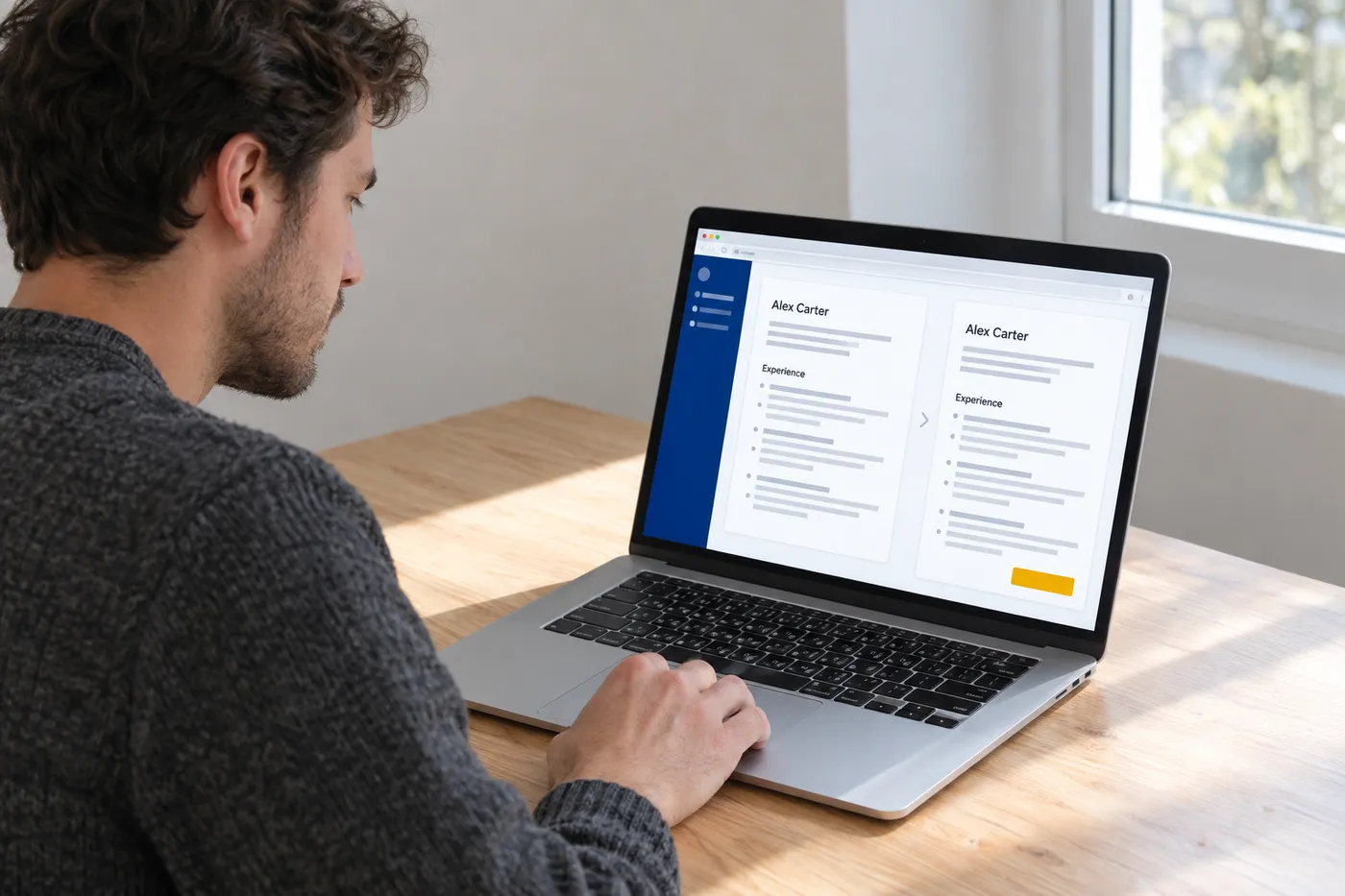
The migration is painless because you already have the PDF. Roleframe imports the PDF you exported from Docs and turns it back into editable blocks, with roles and dates in the right places, then runs an analysis that names the weak sections. Duplicate that base for a specific job and you get a fit report: an ATS score against the posting, the exact keywords it expects that your CV is missing, and a prioritized plan. You make the edits yourself, with Remi, its career copilot, proposing rewrites bullet by bullet that you approve or discard. Nothing goes on the page without your sign-off, which matters, because a claim you didn't write is a claim you can't defend in the interview. The editor itself is free to use without an account, and the PDF it produces matches the editor exactly, so the export-and-hope step this article exists for disappears.
Checking the exported PDF before you send it
Whatever template you chose and however careful you were, verify the actual file. The whole check takes ninety seconds and catches every failure described above.
- Export with File > Download > PDF document. Don't print-to-PDF; the built-in export handles fonts better.
- Open the PDF, select all, copy, and paste into a plain-text editor like Notepad or TextEdit in plain-text mode.
- Read the paste top to bottom. Job titles should sit above their own bullets, and each date range should appear next to the role it belongs to.
- Search the paste for the @ symbol. If your email isn't findable, it's sitting in a header the parser will discard.
- Confirm bullets pasted as visible characters and no heading came out letter by letter.
- Glance at the PDF's page break. A heading stranded alone at the bottom of page one means your spacing needs fixing, and manual blank lines are usually the culprit.
- Check the filename before attaching. FirstName-LastName-Role.pdf, nothing else.
The copy-paste test approximates what a parser does, and for most failures it's enough. For a second opinion with scoring attached, run the file through the checks in how to test your resume against an ATS. Do the check every time you re-export, because a passing PDF from last week says nothing about the one you generated this morning after edits.
Frequently asked questions
- Are the Google Docs CV templates free?
Yes. The gallery templates (Swiss, Serif, Coral, Spearmint, and Modern Writer) come with any Google account, and selecting one drops an editable copy into your Drive. Third-party template sites offer more designs, and some are fine, but plenty route you through signup walls for layouts that parse worse than the gallery's single-column options. Start with Swiss or the Harvard-style doc before paying anyone.
- Is the Harvard CV template on Google Docs ATS-friendly?
Yes, and mostly because it's plain: a single column with conventional headings and no tables or text boxes, which is exactly what parses cleanly. Use File > Make a copy on the shared document rather than requesting edit access to the original. One caveat: it's built in the academic CV tradition, so for a US industry application trim it to one or two pages and keep the order reverse-chronological.
- Should I download my Google Docs CV as PDF or Word?
PDF, by default. It freezes the layout and embeds the fonts, so the file you checked is the file the recruiter opens, and the major hiring systems handle PDF fine. Send a .docx only when an employer explicitly asks for one, and treat that as the exception rather than a reason to maintain two formats.
- Can I make a two-column CV in Google Docs that still parses?
You can, but you're betting on each parser's guess about reading order, and my test showed sidebars interleaving into the experience section. If you want visual structure, get it from typography and spacing inside a single column instead. If you insist on a sidebar, run the select-all copy-paste test on the exported PDF and confirm the text reads sensibly top to bottom before you send it anywhere.
- Why does my Google Docs CV look different after I download it as a PDF?
Usually spacing rather than fonts, since Docs embeds fonts on export. Stacked blank lines and manual page breaks reflow whenever content changes, so an edit on page one shoves a heading to the bottom of the page or strands a bullet alone on page two. Switch to paragraph spacing settings under Format > Line & paragraph spacing, and recheck the exported PDF after every round of edits.
- Can a recruiter see my edit history if I share a Google Docs link?
Version history is visible only to people with edit access, so a view-only link doesn't expose it. The real risks of sending a link are different: the request-access wall that stops a recruiter cold, and a live document that keeps changing after you apply. Attaching a PDF avoids every one of those problems, which is why it should be your default.
Ready to start your new resume?
Writing a resume takes time, and even a polished one can miss what a hiring manager is looking for. Roleframe helps you build a clear, ATS-safe resume in minutes and tailor it to the job you want.


