How to Edit a PDF Resume Without Breaking the Layout
Edit a PDF resume using its source file, Acrobat text editing or a rebuilt document. Check text boxes, conversion errors, imported details and the final export.

On this page
For a substantial resume update, first look for the editable source: a Word file, Google Doc or saved resume-builder document. Update that version and export a new copy if you can.
If you only have the PDF, you still have choices. A PDF editor can change existing text, a converter can rebuild an editable document, or a resume editor can help reconstruct the content in a new layout. The right route depends on the file and the size of the change. This guide explains the tradeoffs and the checks that keep missing text or layout errors out of the version you send.
Why PDF editing needs an extra layout check
PDF is a fixed-layout format. It stores page content, but a file does not necessarily retain the same editable relationships as its source document. Some PDFs also contain logical tags; they are not all just pictures or unstructured characters.
Microsoft's explanation of opening PDFs in Word describes conversion as an attempt to reconstruct editable objects and match the layout. Adobe's tags documentation shows that a PDF can contain logical document structure. Neither makes every PDF as easy to revise as its original source.
Before choosing a tool, save a copy of the original. Identify whether you need a small wording correction or a larger change such as a new job entry, different section order or another page.
Small correction: edit the text in a PDF editor
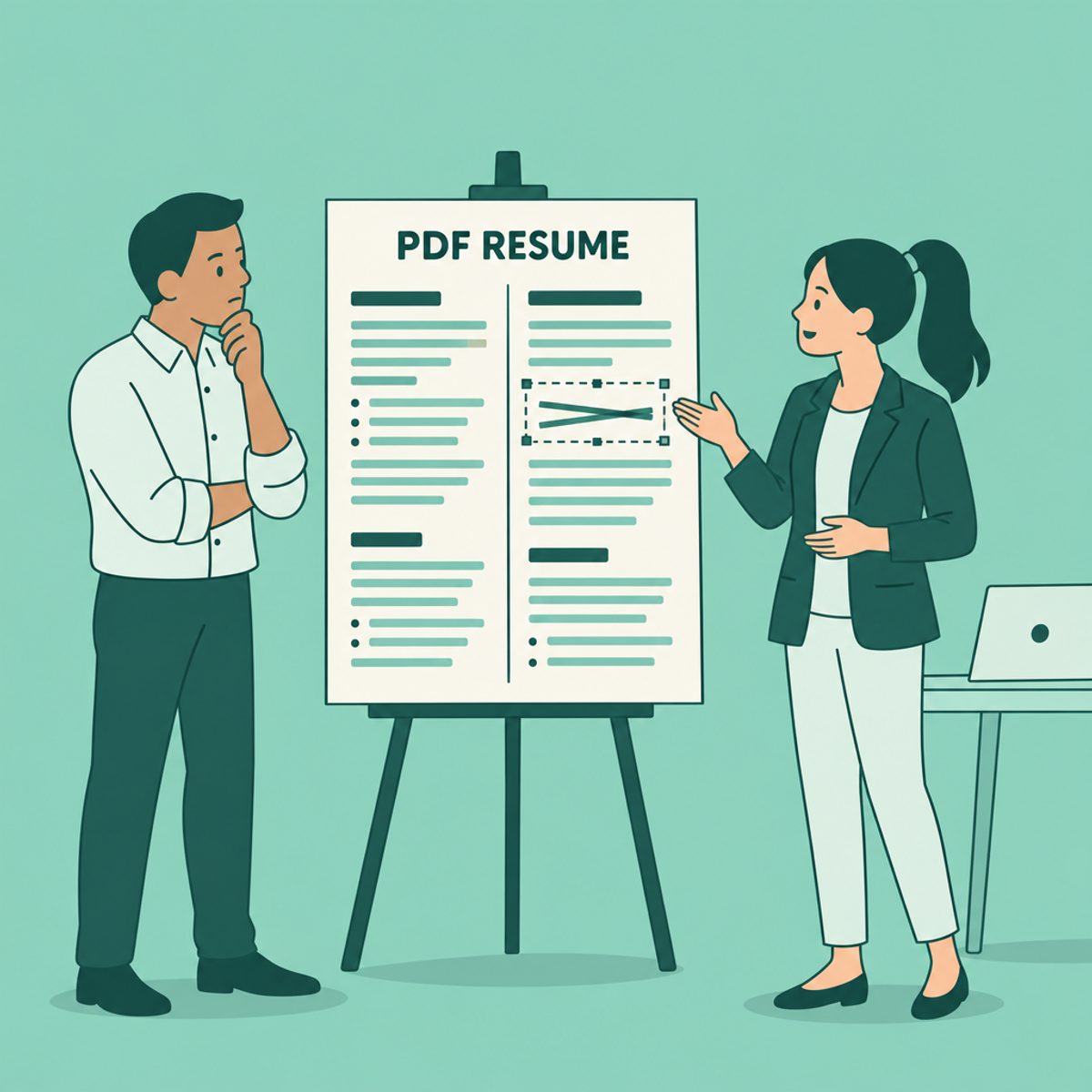
In Acrobat, open the file, choose Edit, select the text and make the change. Adobe documents text reflow within the selected text box. Adjacent boxes and later pages do not automatically move to make room, so inspect the surrounding layout. Missing fonts can also affect the appearance.
- Check the edited sentence at normal reading size and a closer zoom. Look for missing characters, inconsistent fonts and overlap.
- If a paragraph becomes longer, check the boundaries of its text box and nearby content. For a major expansion, consider editing the source or rebuilding the document.
- Avoid merely covering old text with a white rectangle. A visual overlay can leave the underlying content in the file. Reopen the saved copy and inspect both the visible change and copied text.
Another route is to open the PDF in Word and accept conversion into a new document. Microsoft says this works best for mostly text-based files and may not reproduce the original layout. Check columns, dates, bullets and page breaks before relying on the converted version. Keep the original PDF for comparison.
| Route | What you do | What to check |
|---|---|---|
| Edit the original source | Revise the Word, Docs or builder document, then export again | Best starting point when the editable source is available; still check the export |
| Edit existing PDF text | Change text using a PDF editor with editing capability | Check fonts, text-box boundaries and nearby content |
| Convert to an editable document | Reconstruct content in a tool such as Word | Review layout, reading order and missing or displaced text |
| Rebuild or import in a resume editor | Place the content into a new resume structure | Verify every extracted field; the original design may not be preserved |
Larger update: rebuild an editable resume
For a new role, several rewritten bullets or a different section order, a structured resume can be easier to maintain than separate PDF text boxes. You can rebuild manually or use an import feature, then compare the result with the source.
In the signed-in Roleframe app, resume import provides a starting document to review and edit. It should not be treated as a perfect transcription or a promise to preserve the original layout. Check the account's current import allowance before proceeding.
The manual free resume builder is a separate route for creating a document from the content you supply. Do not assume that guest editing includes the signed-in account's analysis features.
Step 1: inspect the PDF and choose an editing route
Try selecting and copying a sentence from the PDF. If it works, inspect the extracted words and order. If it does not, the file may be image-based or have another extraction limitation. A scan can require optical character recognition (OCR), and OCR output needs careful checking, especially names, dates and numbers.
- Open a copy of the PDF and select text from several sections.
- Paste it into a plain-text editor and check missing characters, dates and reading order.
- If the result is incomplete, try the original source or an OCR-capable workflow. A successful copy-and-paste check is useful but does not guarantee that another importer will produce the same result.
If using an exported profile or an old resume as source material, check that it contains the history you want to include. A profile export may need significant editing for a particular job. Keep the source beside the new draft while you review it.
Step 2: Review the automatically structured sections
An imported or converted document needs a field-by-field review. Compare the new draft with the source instead of assuming the tool got every relationship right. Start with these four checks:
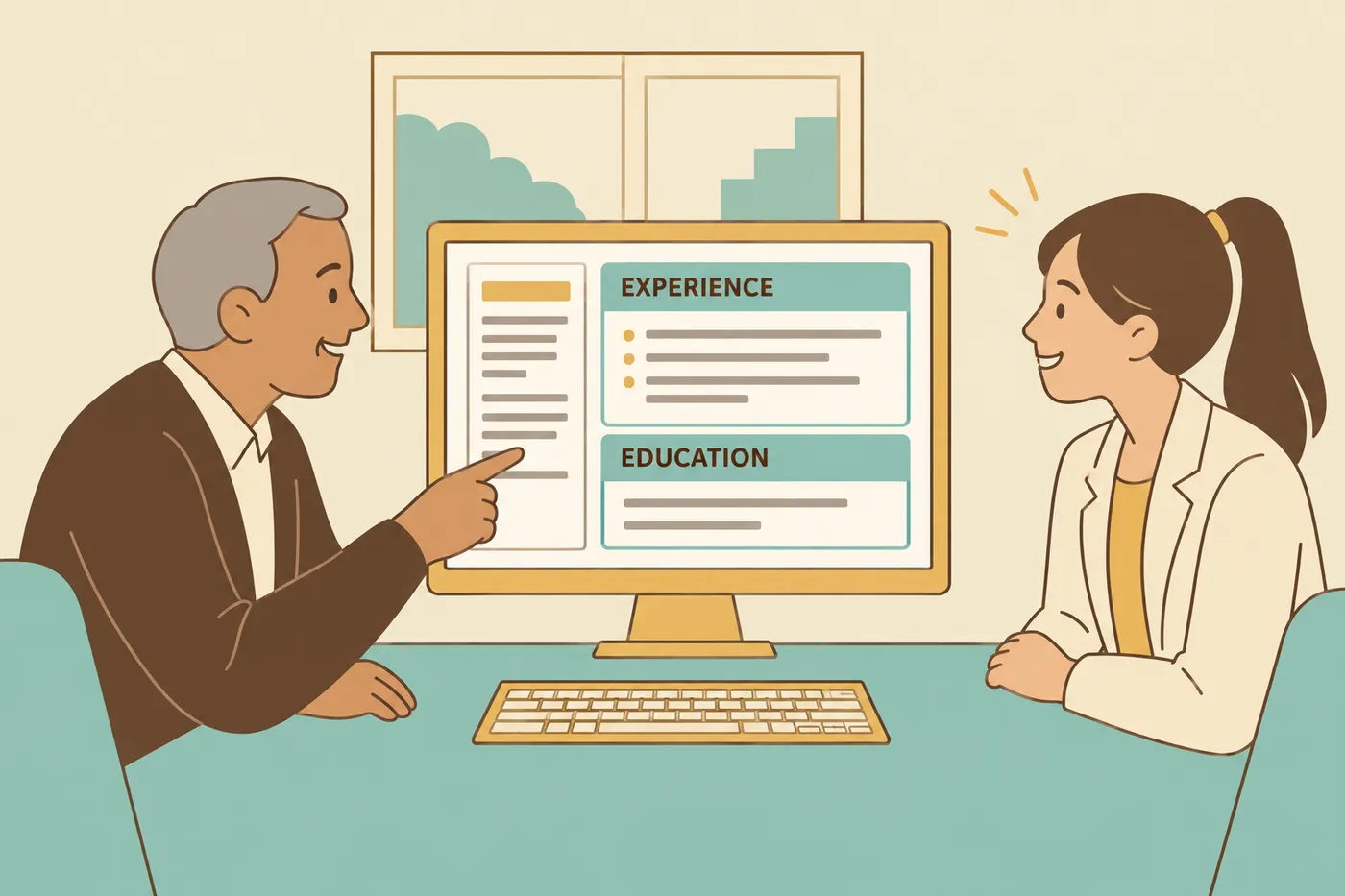
- Dates attached to the right role, especially if your original used a two-column layout where dates sat far from job titles.
- Bullets grouped under the correct job rather than drifting up into the one above.
- Contact details: compare name, phone, email and links with the source, particularly when they came from a header or footer.
- Section labels. If your original called the work history something like "Relevant Experience," confirm it landed as an experience section.
Correct misplaced content and missing fields before improving the wording. If a bullet landed under the wrong job, move or re-enter it under the correct role. Keep job dates and titles accurate even when you change the design.
Step 3: Make your edits in a document-grade editor
Make the content changes in the editable document. Add the new role, update dates and rewrite only the bullets that need revision. After each larger change, look for clipping or a section that has moved awkwardly across pages.
Choose section order based on the target role and your evidence; our resume section-order guide compares options. When using Roleframe's AI suggestions in a signed-in account, inspect the proposed wording before applying it. A clearer sentence must still describe your actual work.
Keep a base copy when editing for one application. The base resume and tailored-versions workflow helps you retain a broader record while focusing a particular draft.
Step 4: export and inspect the file you will send
Reopen the downloaded file outside the editor. Check every page, especially the last bullet of long sections, page bottoms, contact details and links. Compare important text with your source or edited draft to catch omissions.
Copy a section into plain text to look for obvious extraction problems. This is a preliminary check, not proof of how an employer's parser works. Follow the application's accepted file types and inspect any autofilled fields before submitting.
For layout decisions, see ATS-friendly resume formatting. Keep the editable source after export so the next update is easier.
How to edit a PDF resume for free
If you still have access to the source editor, revising that file may avoid buying a separate PDF-editing tool. For a new layout, you can manually rebuild the content in the free Roleframe resume builder. Check any account-based import or AI allowance separately.
Free PDF tools differ: some allow existing-text edits, others only add annotations or overlays. Before spending time on one, confirm it supports the change you need and that you can download the result. For free rebuilding routes, see our free resume-builder guide.
Frequently asked questions
- How can I edit a PDF resume for free?
First try the editable source you already have. You can also manually rebuild the content in Roleframe's free builder. If choosing another free PDF tool, verify that it edits existing text rather than only adding an overlay and lets you download the finished file. Account-based import allowances are separate.
- How do I edit a PDF that I already saved?
Save a copy first. For a small correction, use a PDF editor with existing-text editing. For a larger update, edit the original source if available or convert/rebuild an editable document. Review the layout and content after saving.
- What is the easiest way to edit a PDF resume?
It depends on the file and change. A short correction may suit a PDF editor. A new job entry or reordered resume may be easier in the original source or a rebuilt document. Test one change before committing to a tool, and keep the original for comparison.
- How do I edit an already made resume for a new job?
Keep a base copy, save a job-specific version and change emphasis without changing facts. Use any Roleframe job-fit feedback as a checklist rather than an employer score. Verify suggested text and inspect the export. Our master-resume guide explains the setup.
- Can I edit a PDF resume in Microsoft Word?
Word can convert a PDF into an editable copy. It works best with mostly text-based files and may change the layout. Compare the result with the original, fix displaced or missing content and keep an editable copy for future changes.
- Will an ATS reject a PDF resume?
Use the file type the employer accepts. A PDF is not automatically rejected or guaranteed to parse correctly. Check the visible file, copied text and any application autofill fields. Correct mistakes before submitting when the portal allows it.
- Why does my PDF resume break when I edit it?
A PDF has a fixed page layout, and its editing behavior depends on the file and tool. Acrobat can reflow text inside a box, but surrounding boxes and following pages do not automatically move with it. Font substitution or conversion can also change appearance. For extensive changes, consider the source file or a rebuilt document.
Ready to start your new resume?
Writing a resume takes time, and even a polished one can miss what a hiring manager is looking for. Roleframe helps you build a clear, ATS-safe resume in minutes and tailor it to the job you want.


